

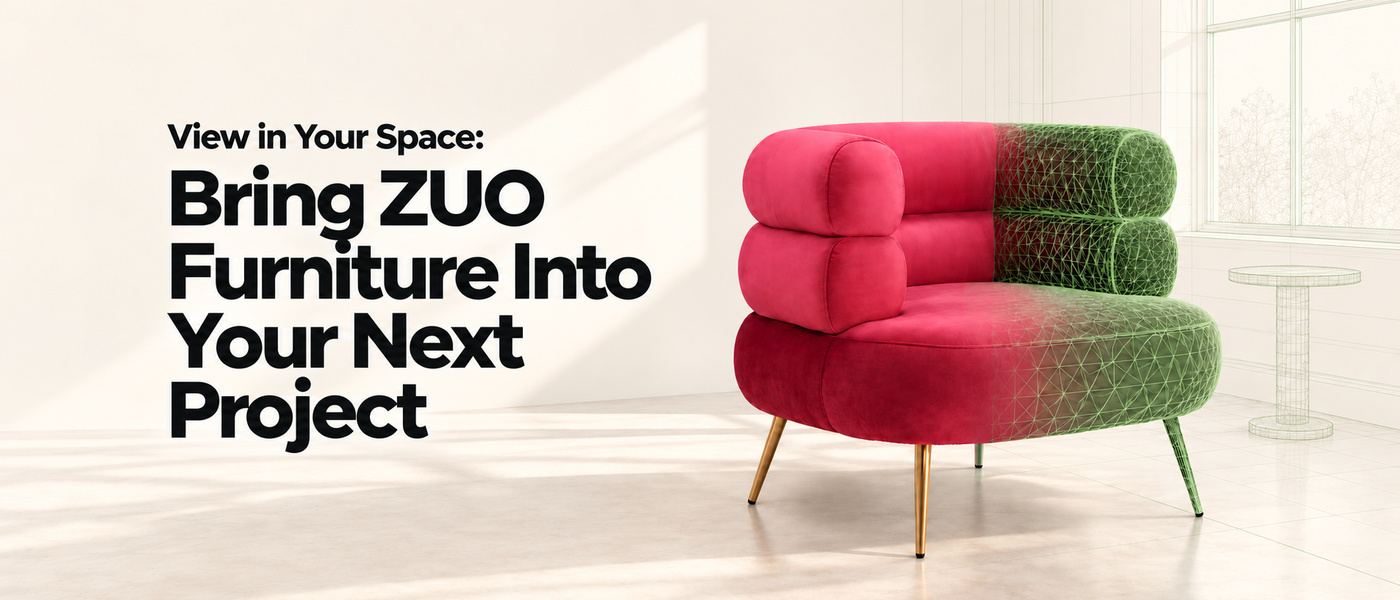
A product photo can catch your client’s attention. Seeing that piece in their actual space can help move the conversation toward a decision.
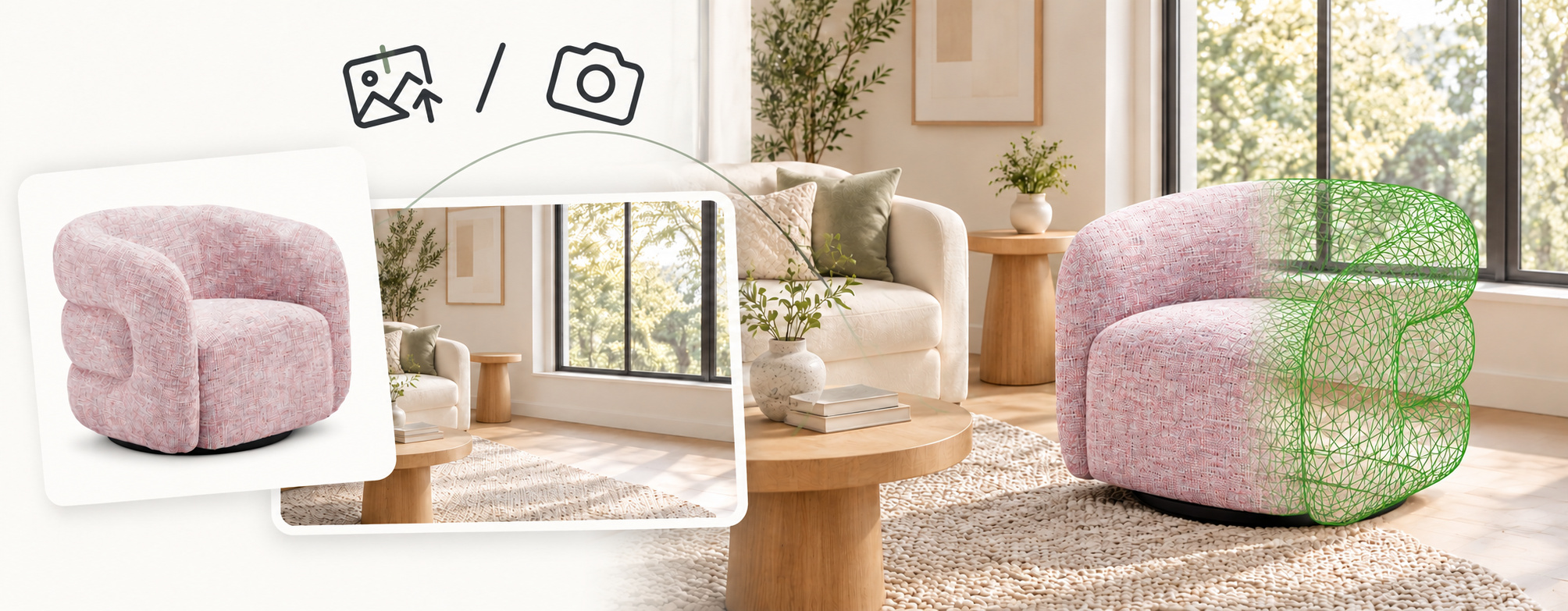
With View in your space, powered by our partner Roomvo, you can upload a photo and preview ZUO furniture in the setting you’re furnishing—from a living area to a hotel lobby, restaurant, or reception space.
Replace an existing piece or add something new, then download the image to share with your client or project team. Most ZUO products are available in the tool, with availability varying by item.
Get Started in Four Simple Steps
1) See a piece you like? 😎 Try it!
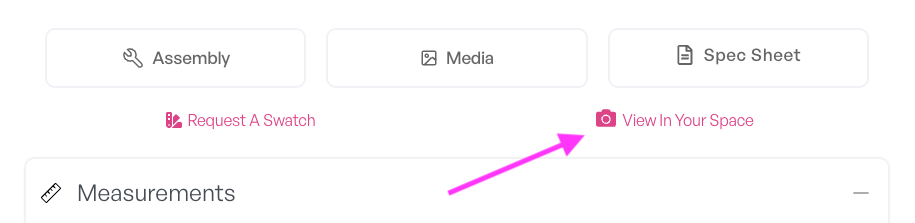
When an item catches your eye, click View In Your Space on its product page.
2) Add a photo 📸
On your phone, choose a photo from your library or take one directly with your camera.
On your computer, upload an image from your files—or scan the on-screen QR code with your phone to take or upload a photo. The image transfers to your computer’s browser session so you can continue there.
Your uploaded photo appears under “your rooms.” Select it to begin. You can also choose one of the demo rooms to test the tool without uploading a picture.
3) Replace a piece or add something new ✨
Choose Swap existing product or Place a new product. The tool analyzes the space to identify furniture you can replace or an area where you can add an item.
When swapping furniture, circular markers highlight the available items, tap to replace it.
When adding a new item, drag the green outline to the desired spot and use the curved arrows to rotate it. Select Place here to generate the preview with your chosen product.
4) Download and present ✅
Save the image alone or download the image with product specifications for your next email, proposal, or presentation.
To work with another space, simply select Change Room.
Make it part of your sales and design process
From refreshing a seating area to presenting a larger furnishing concept, there are plenty of ways to put this tool to work. Preview an accent chair alongside existing furniture, explore a new look for a lobby, or show how an empty corner could become a welcoming spot. You can also compare alternatives, introduce pieces beyond a showroom display, and share previews with everyone involved in the decision.
For the clearest preview, start with a well-lit photo that shows the intended area. Before ordering, confirm dimensions, clearances, materials, availability, and suitability for the project.
Bring a client photo, explore a new furniture direction, or start with a demo space. Click View In Your Space on a supported product, or browse all available products through the link below.
One more thing… add it to your website for free
ZUO customers with an e-commerce website can offer this experience to their own shoppers at no charge, thanks to our partnership with Roomvo.
Add a few lines of code to your website, and customers can preview available ZUO products in their own spaces while shopping with you.
Email hello@zuomod.com if you want to know more